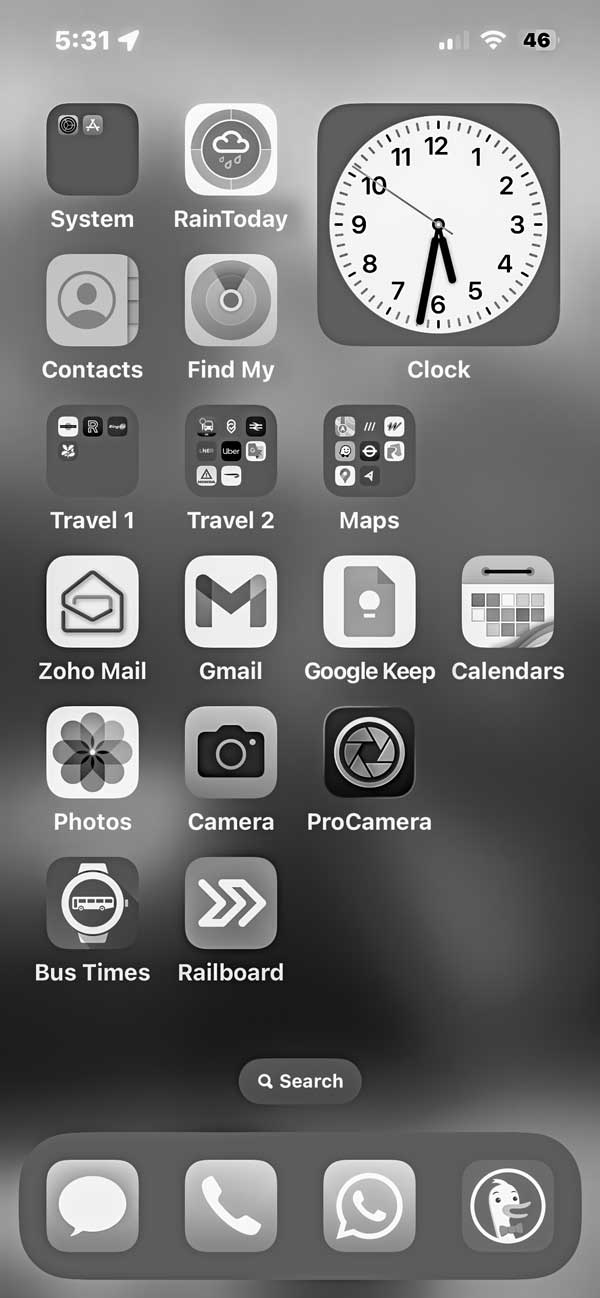
I read an article in the New York Times over Christmas (I Killed Color on My Phone. The Result Shocked Me – subscribers only). The author had discovered that you could use a greyscale colour scheme with your iPhone rather than the usual colour scheme. Why would you do this? Well, to make the phone less addictive! Colour is attractive, greyscale is not.
So I thought I’d give it a whirl. Step 1 switches the iPhone to greyscale (or to switch it back to colour). Step 2 enables you to switch back and forth between greyscale and colour by triple-clicking the side button. Early days but I’m still in greyscale mode and only switching temporarily when using the Photos app.
1. How to Enable Greyscale on iPhone
Open Settings
Tap the Settings app on your iPhone.
- Navigate to Accessibility
Scroll down and select “Accessibility.” - Select Display & Text Size
Under the “Vision” section, tap “Display & Text Size.” - Turn On Color Filters
Find “Color Filters” and toggle it to “On.” - Choose Grayscale (ie greyscale!)
Select “Grayscale” from the options available.
2. Creating a Greyscale Shortcut to switch between colour and greyscale
To easily switch between colour and greyscale, you can set up a shortcut:
- Go to Accessibility Shortcut
In the Settings/Accessibility menu, select “Accessibility Shortcut”. It’s right at the bottom. - Set Up Color Filters
Choose “Color Filters” to allow quick toggling by triple-clicking the side button.
 things change
Have your say! (No need for any ID!)